Unlocking Creative Freedom: A Practical Guide to the Junk Journal Folio Template Kit
There is a distinct satisfaction in holding a handmade junk journal—a tangible collection of textures, memories, and artistry. Yet, many creators hit a wall when it comes to the foundational structure. The Junk Journal Folio Template Kit is designed to eliminate that friction, offering a comprehensive toolkit for artists, scrapbookers, and hobbyists who want to focus on the creative layer rather than the mathematical precision of page folding. However, simply downloading a file and hitting "print" often leads to frustration. To truly leverage this kit, you must understand the nuances of file formats, printing specifications, and material compatibility.
Understanding the Core Asset: The Folio Template
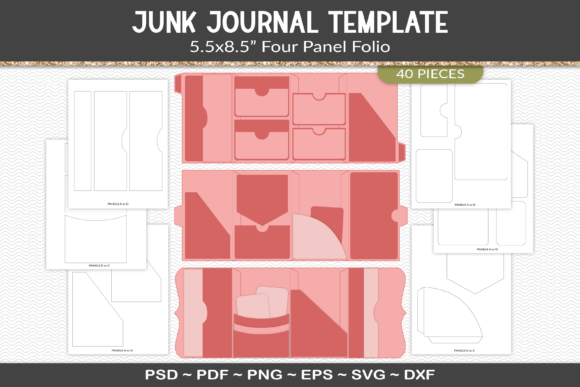
At its heart, the Junk Journal Folio Template Kit provides the skeleton of your book. A folio, in this context, refers to the folded sheets that make up your signatures—the bundles of pages that are eventually bound into the journal. The kit provides templates for these folds, ensuring that your pages align correctly, your pockets sit flush, and your binding edges are consistent.
The true value lies in the flexibility of the delivery formats. You are not locked into a single proprietary software or a specific printing service. By receiving PDF, PNG, SVG, DXF, EPS, and PSD files, the kit adapts to your workflow, whether you are a digital designer working in Adobe Illustrator, a crafter using a Cricut or Silhouette machine, or a beginner who just wants a printable outline. However, this abundance of options is often where the first mistake occurs: using the wrong file for the wrong job.
The Critical Mistake: Misunderstanding File Formats
A common pitfall for beginners is treating all file formats as interchangeable. This leads to pixelated prints, misaligned cuts, and wasted paper. Each file in the Junk Journal Folio Template Kit serves a specific technical purpose, and confusing them can ruin your project before you even begin.
The Vector vs. Raster Trap
If you attempt to scale a PNG file to make a larger folio, you will lose quality. PNG files are raster images made of pixels; they are intended for use as stencils or for printing at the exact size provided. Conversely, the SVG, DXF, and EPS files are vector formats. These are mathematical paths, meaning you can scale them to any size—from a miniature tag to a massive poster—without losing a single ounce of crispness.
Better Approach: Use the SVG or DXF files if you plan to resize the templates or use a cutting machine. Use the PNG or PDF files only if you intend to print them at their native size. If you are a professional designer looking to integrate these shapes into a larger branding project, the PSD (Photoshop) and EPS files allow for complete editing of layers and paths, ensuring the folio matches your specific color palette and style.
Overcoming the "One-Size-Fits-All" Misconception
Many users download the kit, print the PDF outline, and become disappointed when the standard layout doesn't perfectly fit their specific vision of a "junk journal." The misconception is that the kit is a rigid instruction manual. It is not. It is a starting point.
The kit includes fully editable PSD, EPS, and SVG files for a reason: customization. A frequent mistake is treating the templates as static rather than dynamic. Beginners often try to force their ephemera—the vintage receipts, tea-stained paper, and fabric scraps—to fit the template exactly.
Shifting the Perspective
Instead of forcing your materials into a rigid box, use the templates to "audition" layouts. Print the PDF outline on scrap paper first. This is a crucial step that many skip to save time, only to waste expensive cardstock later. By using a "rough draft" print, you can fold the paper to see how the pockets will sit and whether the flip-outs have enough clearance.
Furthermore, the template is designed to be mixed and matched. You do not need to use the entire folio layout for every signature. You might use the pocket template from one section and the tuck-spot template from another. The SVG and DXF files allow you to break these elements apart on your cutting machine software, creating a bespoke layout that evolves as your journal grows.
Technical Pitfalls: Printing and Cutting Errors
Even with the correct file format selected, technical errors in the execution phase can compromise the quality of your folio. This is particularly true when bridging the gap between digital files and physical paper.
Printer Scaling and Margins
A frequent issue with the PDF printable is the "fit to page" setting. Most printers default to scaling documents down slightly to ensure they fit within the printer's non-printable margins. If you print a folio template with scaling enabled, your measurements will be off by fractions of an inch. While this sounds negligible, in bookbinding, a millimeter of error accumulates across 20 pages, resulting in a warped spine or a book that won't close.
The Fix: When printing the PDF, always select "Actual Size" or set scaling to 100%. If the design exceeds your paper size, use the tiled printing feature in your PDF reader, or switch to the vector files (SVG/EPS) to resize the design to fit your specific paper stock.
Cutting Machine Calibration
For those using the SVG or DXF files with a Cricut or Silhouette, calibration is non-negotiable. Users often complain that their machine cuts slightly inside or outside the line. This is rarely a fault of the template; it is usually a calibration issue between the machine's optical sensor and the blade offset.
Before running a full sheet of premium scrapbook paper through your cutter, perform a test cut on a plain piece of copy paper. Check the corners. If the cut is drifting, recalibrate your machine's blade depth and pressure. The templates are designed with standard cut lines, but they cannot account for a dull blade or a slipping mat.
Evaluating Quality and Compatibility
Before you commit to a printing method or a specific paper weight, consider the structural integrity required for a junk journal. Folios endure a lot of stress. They are opened, closed, stuffed with ephemera, and handled frequently.
Paper Weight and File Selection
If you are using the PNG stencil to trace onto heavy cardstock, ensure your printer can handle the media weight. Alternatively, if you are using the PDF outline, remember that inkjet ink can smear on coated cardstock if not allowed to dry properly.
A better approach for durability is to use the SVG files to cut your folio shapes out of heavy-weight mixed-media paper or light cardstock (65lb to 80lb). This ensures clean edges and structural stability. Avoid using standard 20lb copy paper for the actual folios; it is too thin to support the weight of glued-on vintage papers and will tear at the folds.
The Creative Application: Beyond the Basics
The Junk Journal Folio Template Kit is not just for standard books. The modular nature of the files allows for creative applications that many users overlook.
Consider using the pocket templates to create standalone ephemera envelopes for a swap or a craft fair. Use the tuck-spot templates to create interactive elements for a scrapbook page. The "mix and match" capability means you can combine a standard folio with a waterfall element or a waterfall with a hidden compartment.
When you stop viewing the kit as a rigid set of instructions and start viewing it as a library of geometric components, your projects become more unique. The editable PSD files allow you to add digital textures to the templates before printing, giving you a "pre-distressed" look that saves time during the physical aging process.
Final Thoughts on Workflow Efficiency
The goal of using a template kit is to save time and reduce the cognitive load of measuring and cutting. However, this efficiency is only realized if you respect the technical specifications of the files provided. By understanding the difference between vector and raster files, calibrating your cutting equipment, and respecting the structural requirements of paper weight, you transform the kit from a simple download into a powerful production tool.
Whether you are a small business owner creating journals for sale, a hobbyist documenting family history, or an educator building interactive learning tools, the principles remain the same. Start with the right file, test your layout, and don't be afraid to edit the source files to make the design truly yours.